
Student Services Offices will be closed on Thursday, June 11, 2026, for Professional Development Day. Offices reopen Friday, June 12, 2026. View the temporary locations of student services below.
New Student Orientation
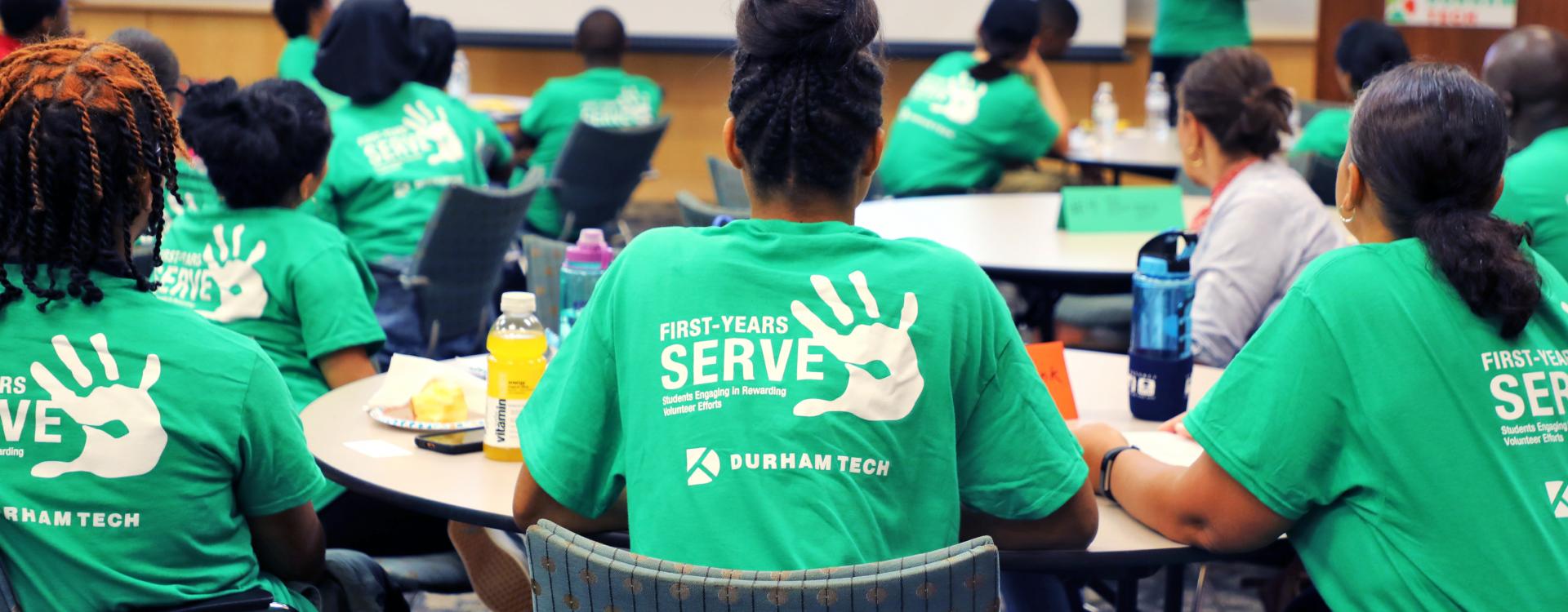
New students, including students enrolling in college for the first time and students transferring to Durham Tech, are strongly encouraged to attend a New Student Orientation after completing the enrollment application.
New Student Orientations are hosted in-person on Main Campus and Orange County Campus, and online through Microsoft Teams.
What to Expect
New Student Orientations prepare students to start strong and succeed in college by:
- Connecting students to members of their new college community
- Reviewing the enrollment process to ensure students have completed necessary requirements
- Helping students know what steps to take to prepare for their first semester and beyond
- Identifying resources and services available to support students’ well-being and success
- Reviewing students’ program information and requirements
- Teaching students about the course registration process
- Assisting with planning courses for upcoming semesters based on students’ program requirements and personal responsibilities